
Current component version: 1.5
API version: 66.0.
Overview
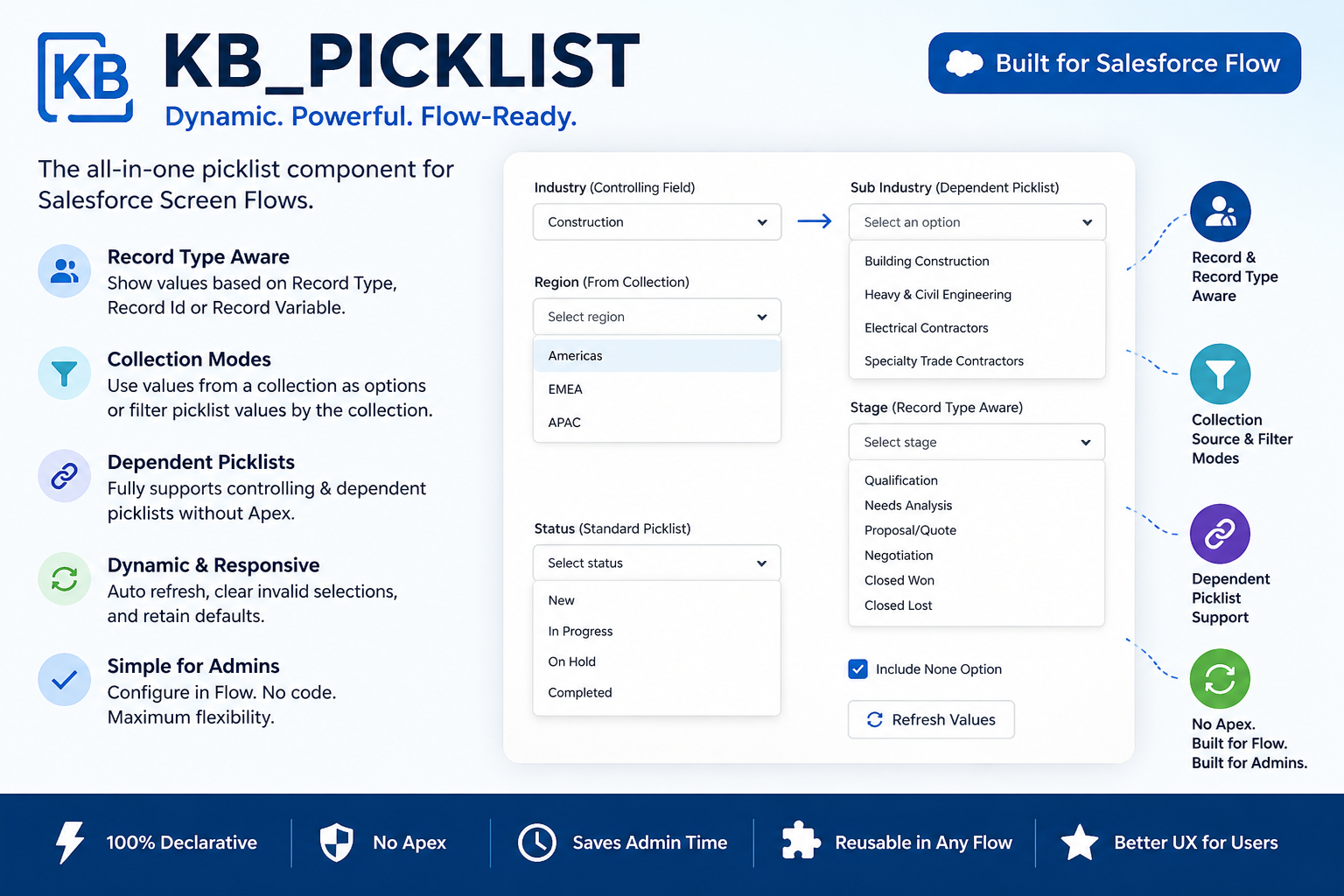
KB_Picklist is a reusable Lightning Web Component (LWC) designed specifically for Salesforce Screen Flows. It provides a flexible way to display picklist values dynamically, taking into account Record Types, dependent picklists, record collections, and Flow-driven logic.
Unlike standard Flow picklists, KB_Picklist can automatically retrieve the values available for a specific field, restrict them based on Record Type, generate options from a collection of records, and even support dependent picklist relationships without requiring Apex.
The component was created to fill a gap in Salesforce Flow functionality, providing administrators with a powerful yet declarative solution for working with picklist fields.
Key Features
Record Type Aware Picklists
Display only the values available for a specific Record Type.
Examples:
- Opportunity Stage based on Opportunity Record Type
- Case Status based on Case Record Type
- Custom picklists with Record Type restrictions
Standard Picklist Mode
When only Object API Name and Field API Name are provided, the component behaves like a standard picklist and displays all available values for the field.
Record-Based Mode
Provide a Record Id or Record Variable and KB_Picklist automatically:
- Determines the Record Type
- Retrieves valid picklist values
- Loads the current field value
Record Type Override Mode
Provide a Record Type Id directly from Flow and the component will display values available for that specific Record Type.
Collection Source Mode
Generate picklist values directly from a collection of records.
Example:
If a collection contains records with:
- Construction
- Education
- Energy
the component will automatically generate those options without needing metadata from the field.
Collection Filter Mode
Display only values that:
- Exist within a record collection
- Are valid for the current Record Type
This is particularly useful when building Flow-based search screens and dashboards.
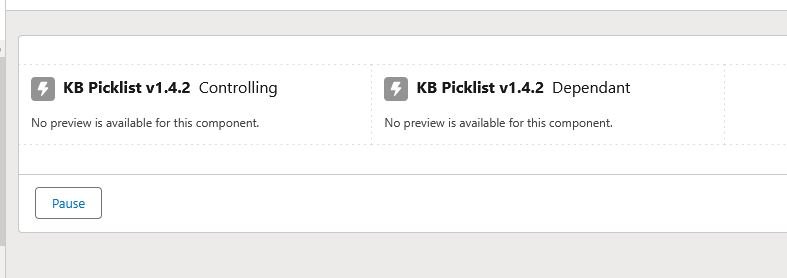
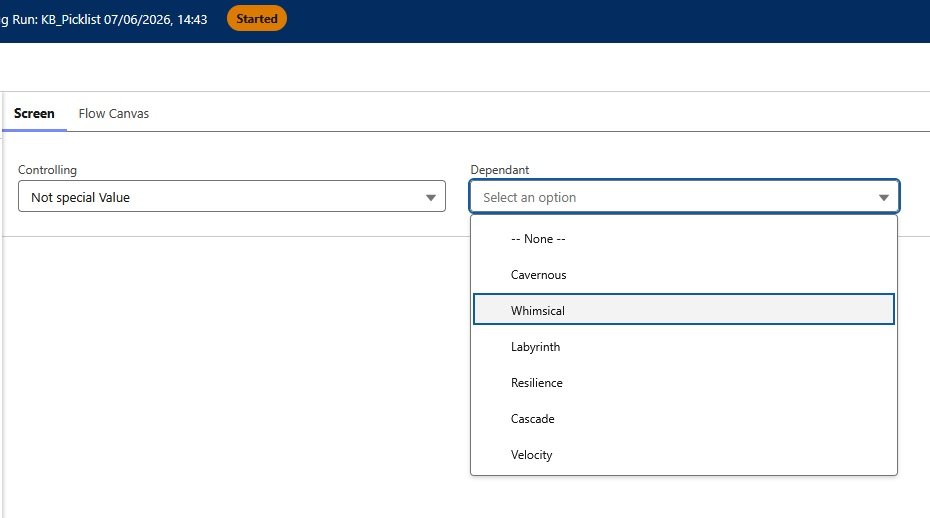
Dependent Picklist Support
Support Salesforce dependent picklists without Apex.
Example:
Controlling Field:
- Industry
Dependent Field:
- Industry Subcategory
When the controlling value changes, the component automatically updates available options.
Default Value Support
Pre-select values using Flow variables.
Optional “None” Selection
Allow users to explicitly clear a value by adding a configurable “None” option.
Manual Refresh
Administrators can optionally display a refresh button that reloads available values.
Configuration
Required Inputs
Object API Name
The API name of the object containing the picklist field.
Example:
Account
Opportunity
Case
Custom_Object__c
Picklist Field API Name
The API name of the picklist field.
Example:
Industry
StageName
Status
Custom_Field__c
Input Properties
Label
Label displayed above the picklist.
Default:
Select valuePlaceholder
Placeholder text shown when no value is selected.
Default:
Select an optionRecord Id
Optional.
When supplied, the component uses the record to determine:
- Record Type
- Current field value
Record Variable
Optional. Alternative to Record Id. Allows the component to use a Flow record variable directly.
Record Type Id Override
Optional.
Forces the component to display values for a specific Record Type.
Useful when the Record Type has already been determined elsewhere in the Flow.
Default Value
Pre-selects a value.
This can also be used to retain selections when navigating backwards in a Screen Flow.
Example:
selectedValue
↓
Flow Variable
↓
inputCurrentValue
Required
Makes selection mandatory.
Required Message
Custom validation message displayed when no value is selected.
Default:
Please select a value.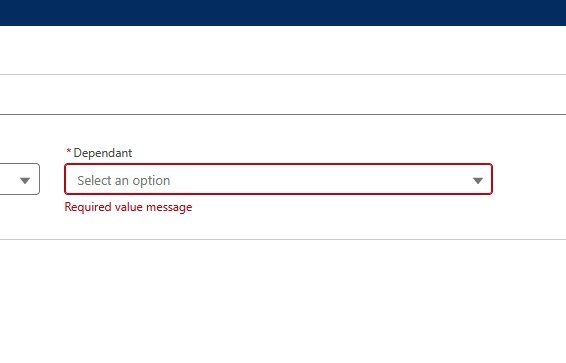
Disabled
Makes the component read-only.
Refresh Values When Screen Renders
Reloads values whenever the screen is rendered. Useful when Record Types or controlling values may change during the Flow.
Clear Value If No Longer Available
Automatically clears a selected value when it becomes invalid.
Example:
- Record Type changes
- Dependent picklist controlling value changes
Include None Option
Adds a blank option to the top of the list.
None Label
Custom label for the blank option.
Default:
-- None --Show Status
Displays the number of available values loaded – good for debugging on the screen.
Example:
8 values loaded.Show Refresh Button
Displays a button allowing the user to refresh values manually.
Refresh Button Label
Custom label for the refresh button.
Default:
Refresh valuesCollection Mode
Filter Values By Record Collection
Displays only values that exist within the supplied collection.
Example:
Record Type allows:
Construction
Education
Energy
Healthcare
Collection contains:
Construction
Education
Result:
Construction Education
Use Record Collection As Source
Builds options directly from values found in the collection – required TRUE, if collection should be the main controller of the displayed values.
Example:
Collection contains:
Construction
Education
Energy
Apparel
Result:
Apparel
Construction
Education
Energy
Dependent Picklist Support
Controlling Field API Name
The API name of the controlling field.
Example:
Industry
Type
Region__c
Controlling Field Value
Current value of the controlling field.
Typically provided by another KB_Picklist component or a field inside a passed recordId.
Example:
Selected Industry
↓
Controlling Field Value
Clear Value When Controlling Value Changes
Automatically clears the dependent picklist selection when the controlling value changes.
Outputs
Selected Value
Returns the API value selected by the user.
Example:
ConstructionSelected Label
Returns the displayed label.
Example:
ConstructionAvailable Values JSON
Returns all currently available values as JSON.
Example:
[
  {
    "label": "Construction",
    "value": "Construction"
  },
  {
    "label": "Education",
    "value": "Education"
  }
]
Success
Returns:
truewhen values load successfully.
Error Message
Returns any error encountered while loading values.
Technical Notes
- Built using Lightning Web Components
- Designed specifically for Salesforce Screen Flows
- No Apex required
- Supports standard and custom objects
- Supports standard and custom picklists
- Supports Record Type restrictions
- Supports dependent picklists
- Supports Flow collections
- Compatible with Experience Cloud
Download:
Install in Sandbox
Install in Production
Disclaimer
I am not affiliated with or employed by Salesforce. All components and examples I share are independent projects and should be thoroughly tested in a Sandbox environment before being deployed to Production. Please ensure they meet your organisation’s security, governance, and business requirements.
Leave a Reply